user-guide
Getting started with Flow
In this segment you will find a brief overview of the most basic and commonly used features of Flow.
Flow basics
The dashboard
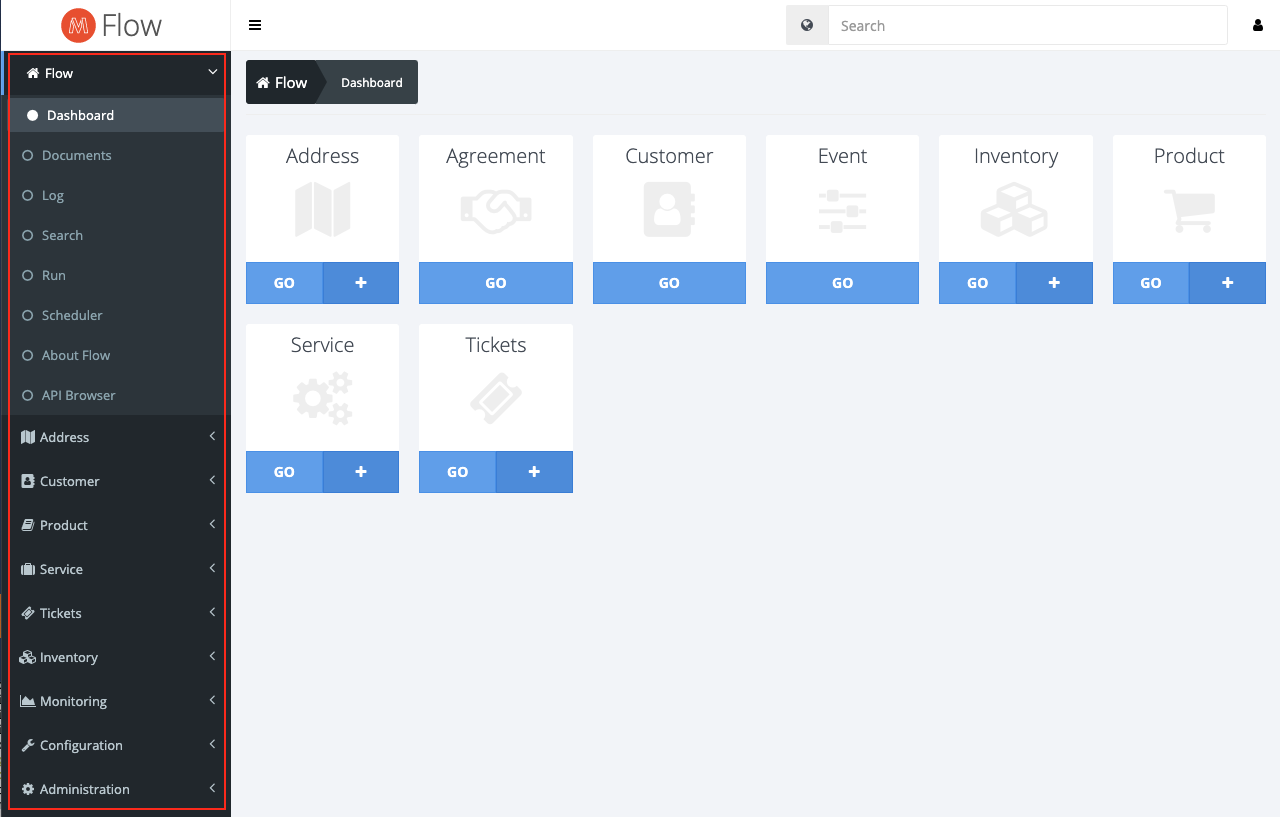
This is the Flow dashboard, it is the home screen of flow and contains some quick navigation tools that we'll get into later.
To the left you can see the menu panel highlighted, this is the explorer of the system, allowing for navigation to every overview in the system.
Navigating the menu
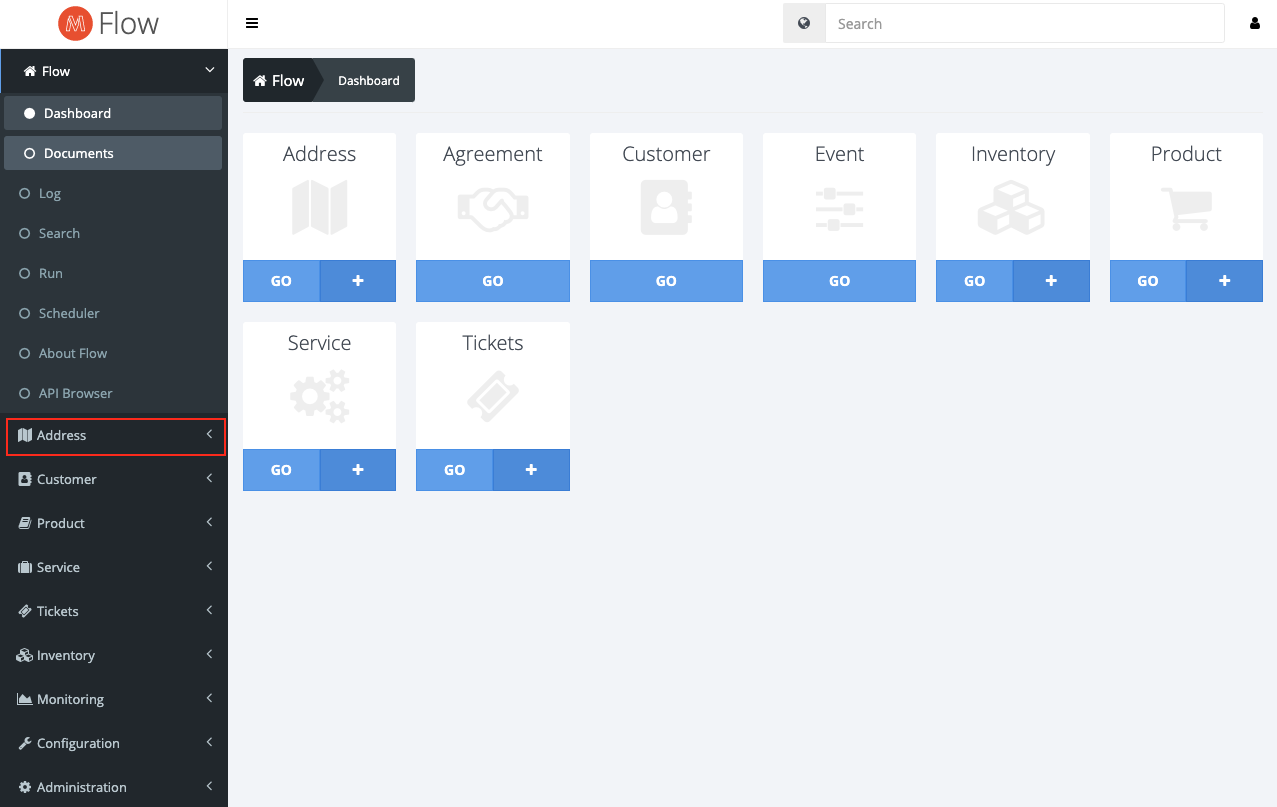
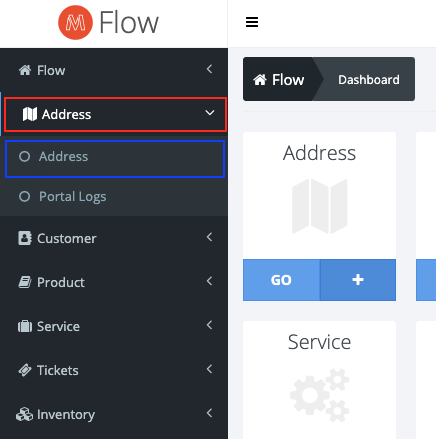
To go to an overview, click on one of the menu sections as highlighted in the picture above and then click on any of the section subitems (highlighted below in blue ) within that folder. The example in the image below will take you to the address overview.
Working in the overview
The overview gives a general view of all the entities that are contained within the subsection, for example all addresses in the system. The overview also allows for filtering and sorting the data that is available in order to find what you're looking for. The overview also allows for importing and exporting of data, where the currently used filter is used for the selection for the data export.
Overview summary
Flow
Dashboard
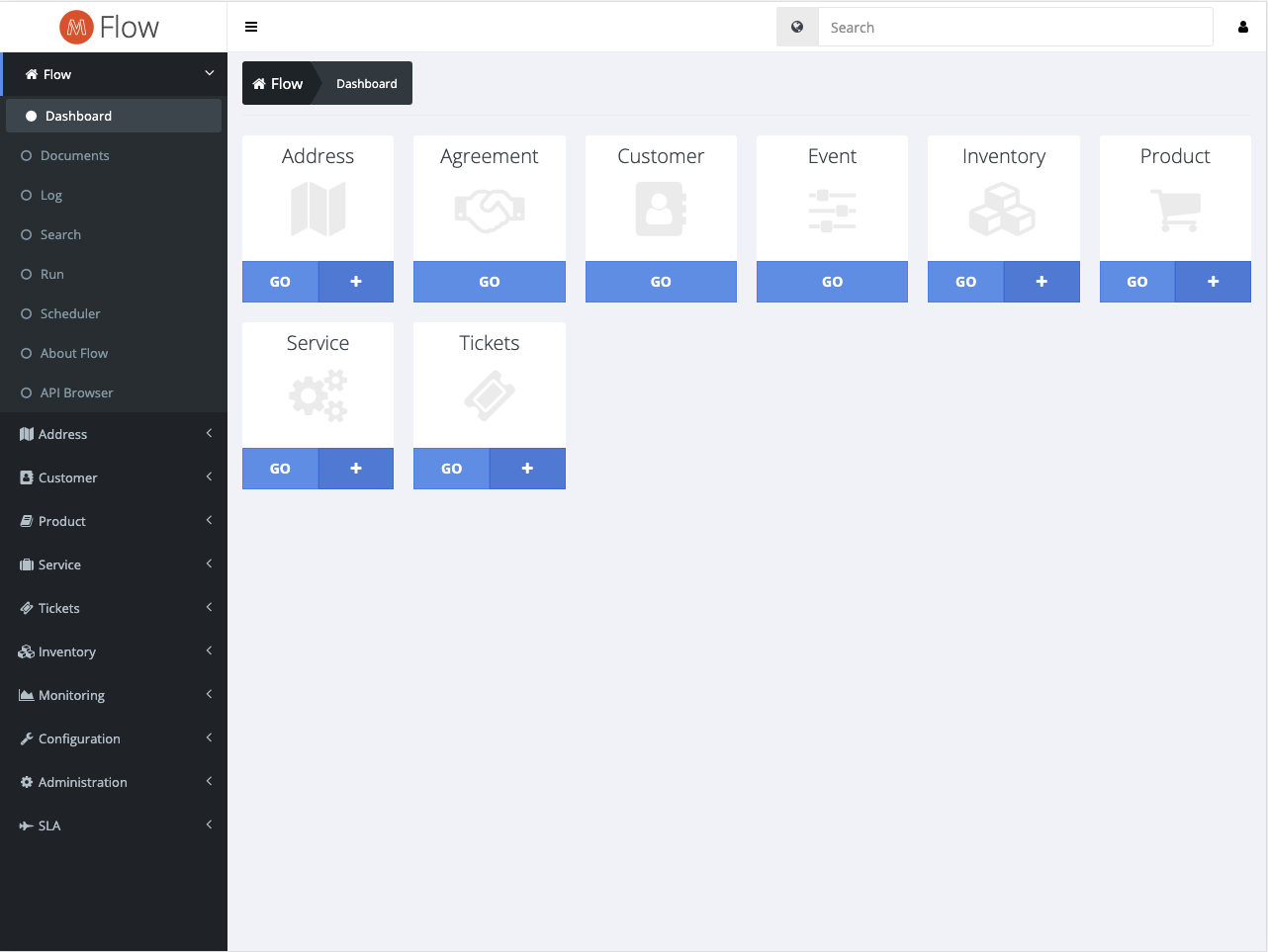
The dashboard is an overview that gives access to all of the most commonly used overviews in the system. To go to the desired overview, click on the GO button. If you instead want quick access to a creation view, click on the plus sign of the related entity.
Documents
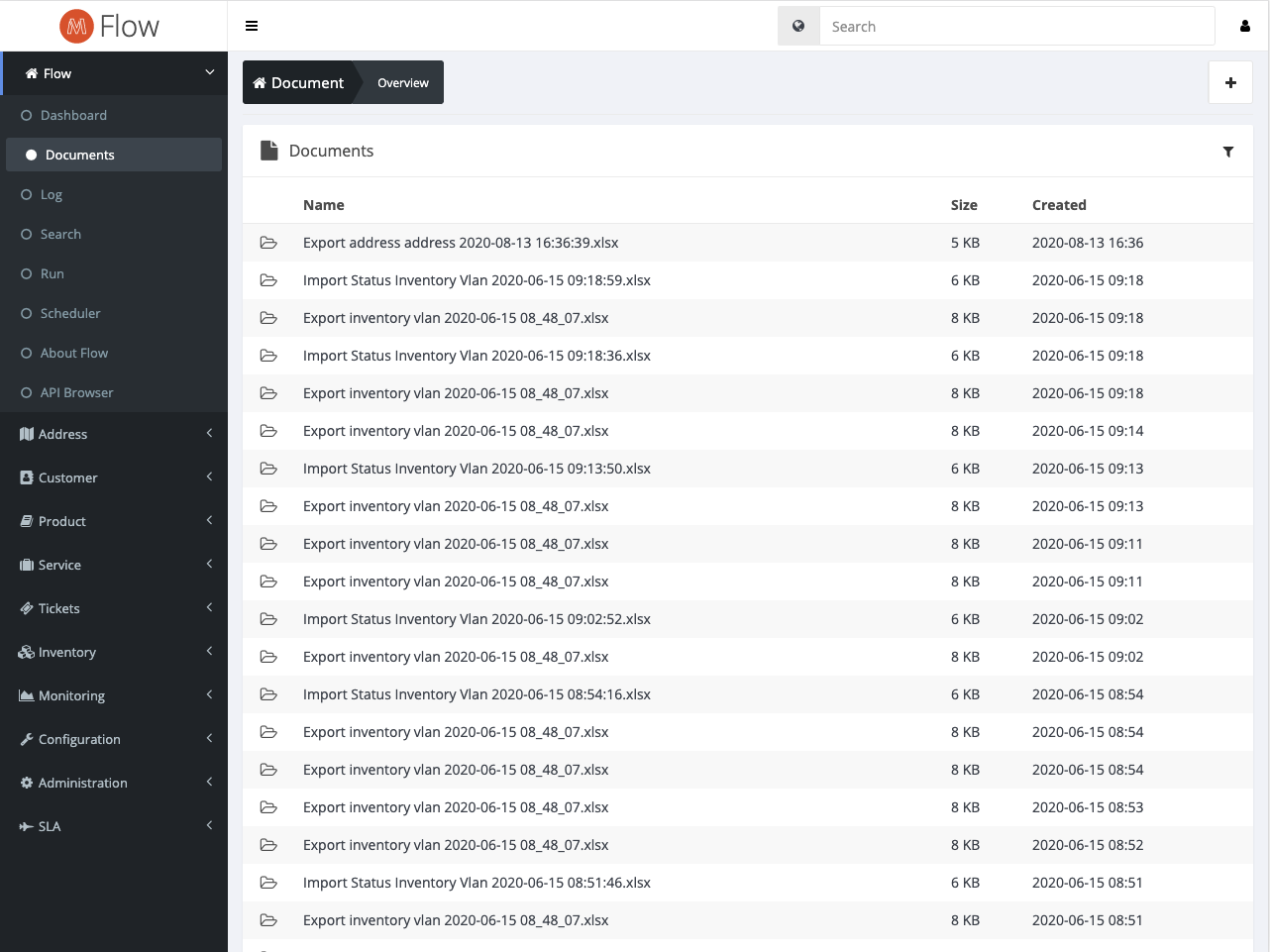
This is an overview of all the uploaded and generated documents of the particular system installation. This includes mostly csv, xlsx, pdf and png files. Clicking on a file takes you to a detailed view of the particular file that among other things allows you to download, delete and label a file.
Run
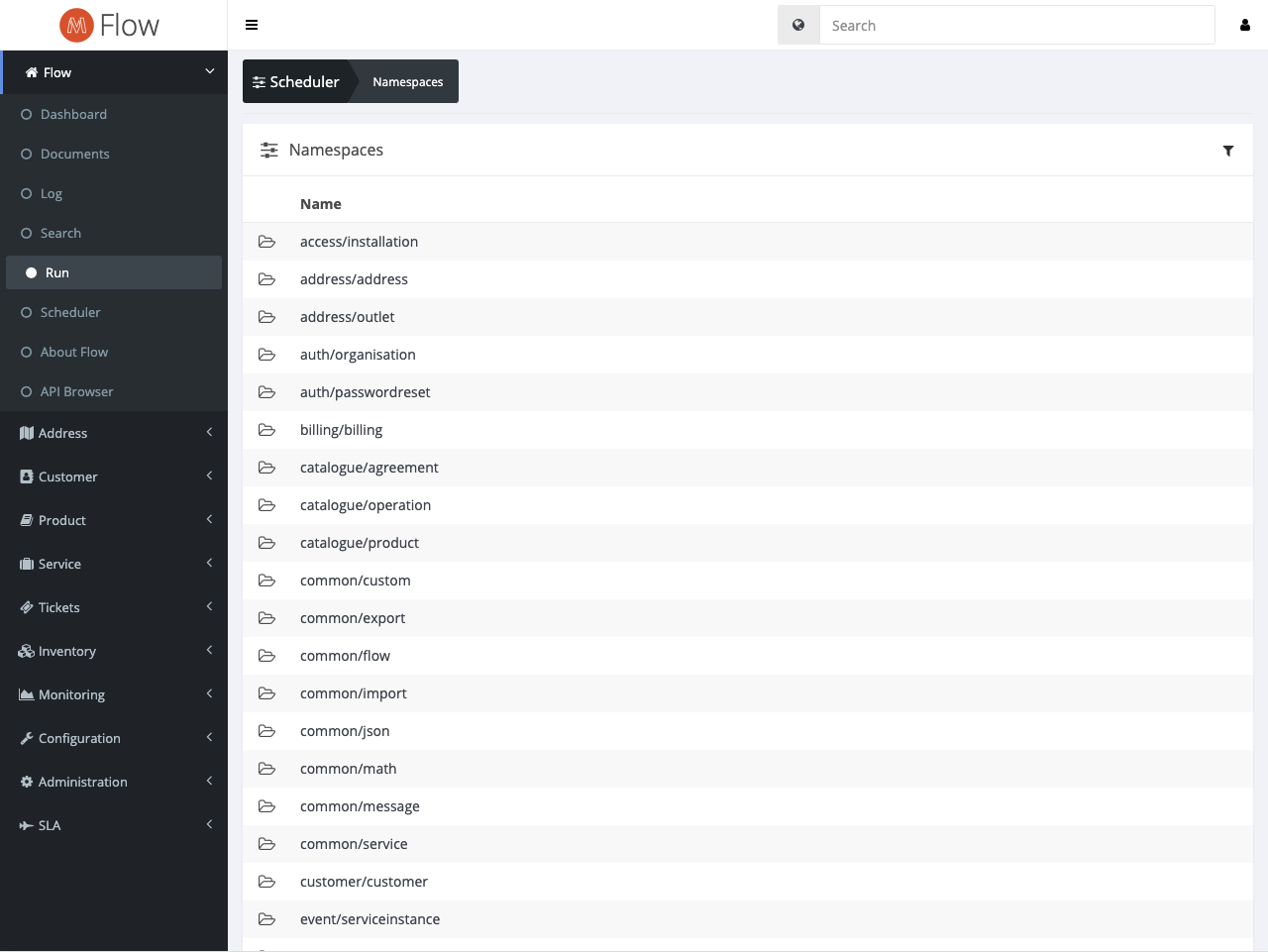
The Run overview is a summary of all the namespaces in the system that allows you to select a certain namespace and apply a flow or method to it. To apply a flow or method, simply click a namespace in the list, this will take you to the event run view. In this 5 step view you can select a specific entity, associate it with a flow or method, tweak it and then run or schedule a run for the flow or method. At the end of the 5 steps you will get a summary of the results.
Event Run view
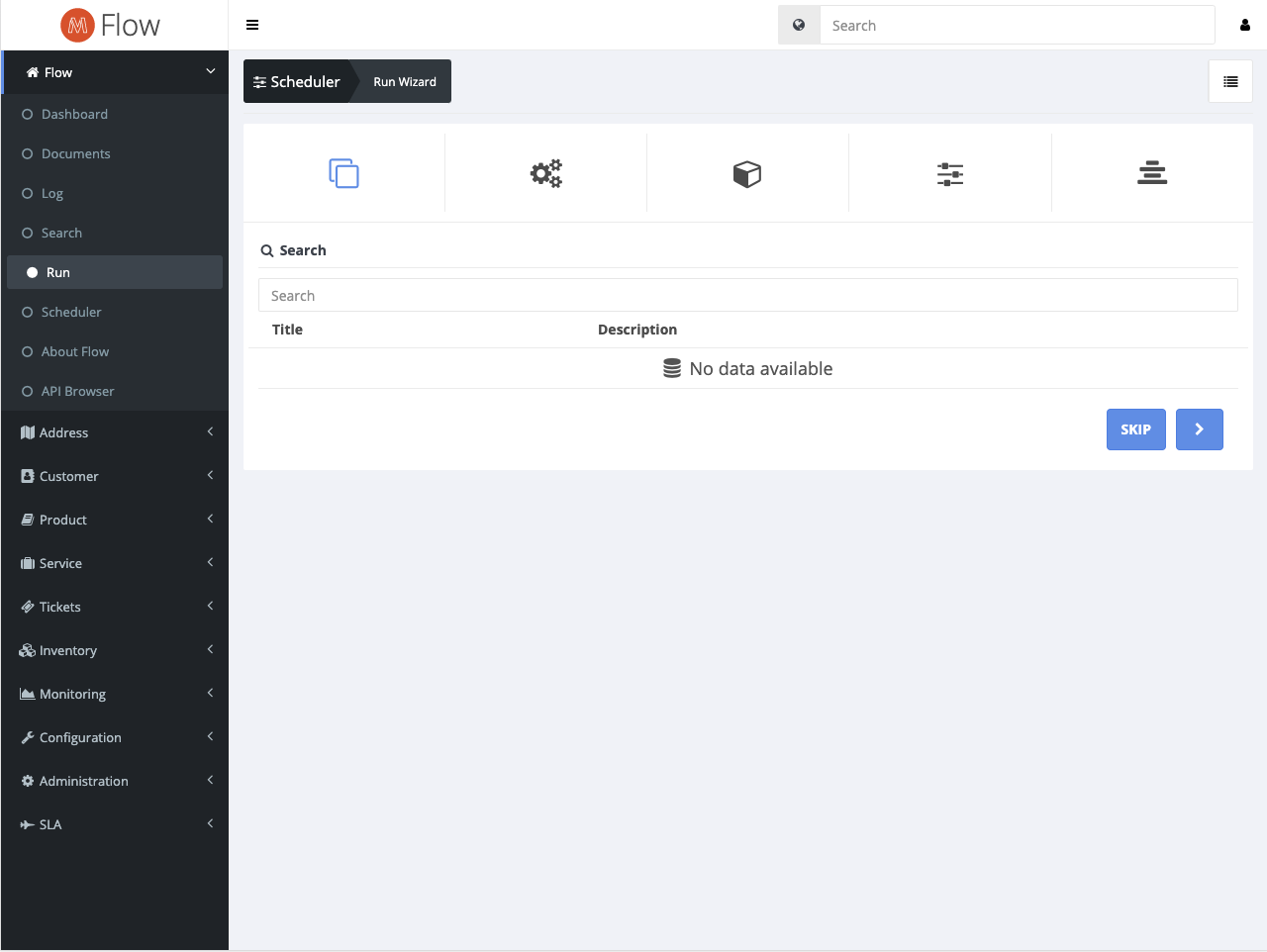
Scheduler
The scheduler gives an overview of all queued events in the system and their respective status. If you click the browse icon of any queued events you will be taken to a detailed view that allows for some further functionality such as restarting, skipping or viewing detailed data. In addition to this the scheduler shows all the scheduled future events in the system.
Address
Addresses can be connected to multiple objects including Agreements, Tickets, Billing Rows & Customers. Addresses are purely for documentation purposes and require at least one outlet for services to be deliverable.
Outlets
Outlets are points of delivery in Flow and represents the end users connection to the network. An address may have multiple outlets but agreements and services are limited to one outlet each. The "Connected to" field represents the outlets connection to the rest of the network and can be set to either a port or a device.
Service catalogue
The service catalogue contains all the associated overviews, these are Service, Instance and Errors.
Service
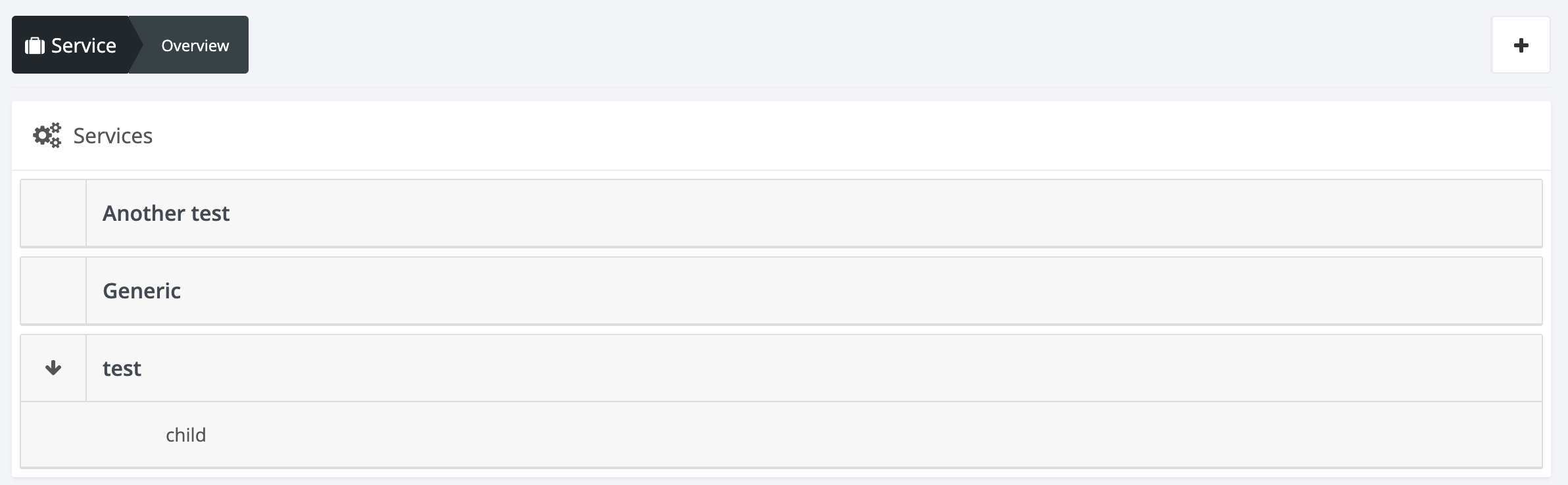
The service overview shows all the available services in the system. Clicking on the arrow icon on any service will expand the service, showing any associated services. If a service does not have an arrow it does not contain any associated services.
Instance
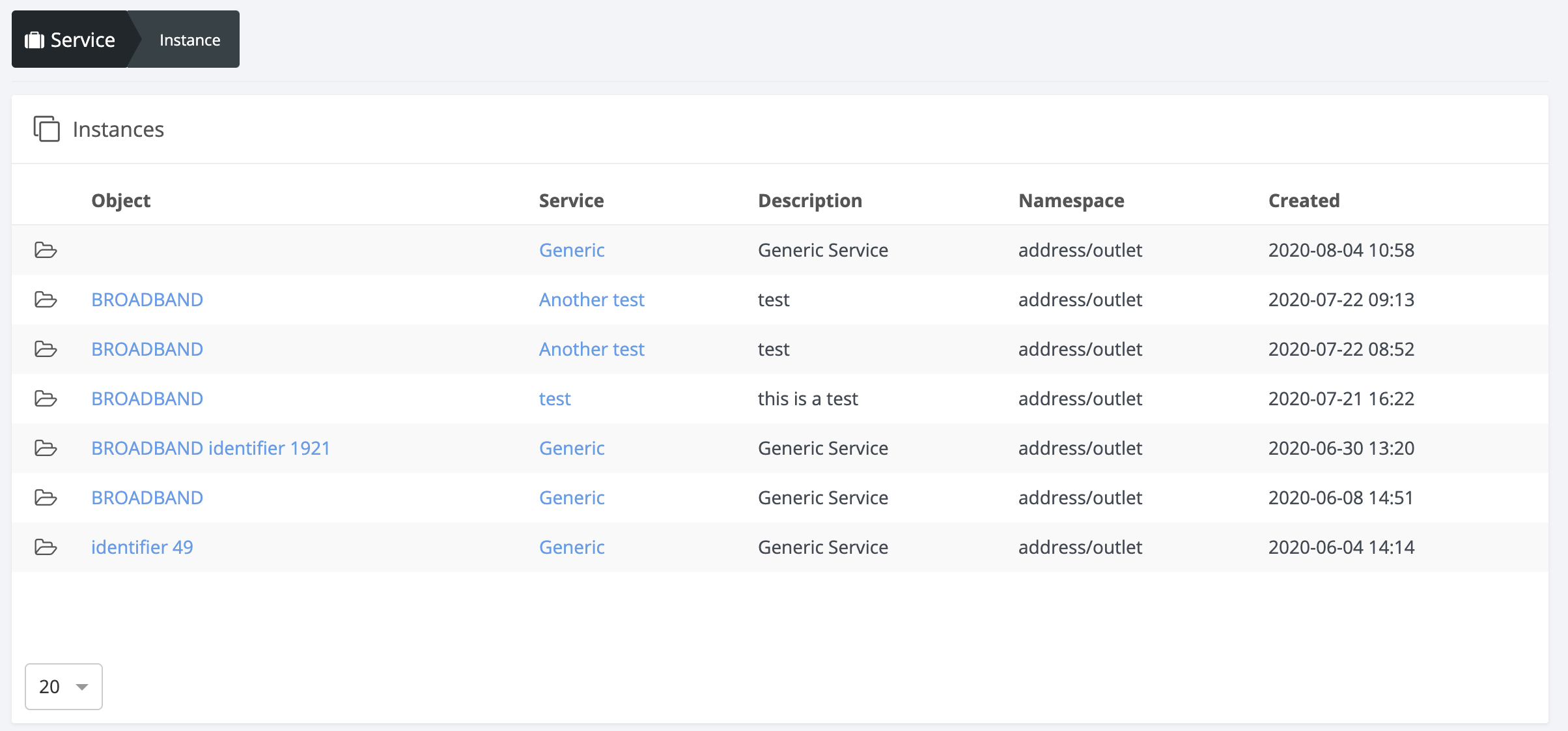
The instance overview displays a summary of all the instances of services run in the system, together with the name of the service, a description, namespace and a created date. Clicking on an instance will give a detailed view, displaying it's status, labels and more.
Tickets
The tickets catalogue contains the tickets overview and the My tickets overview.
Overview
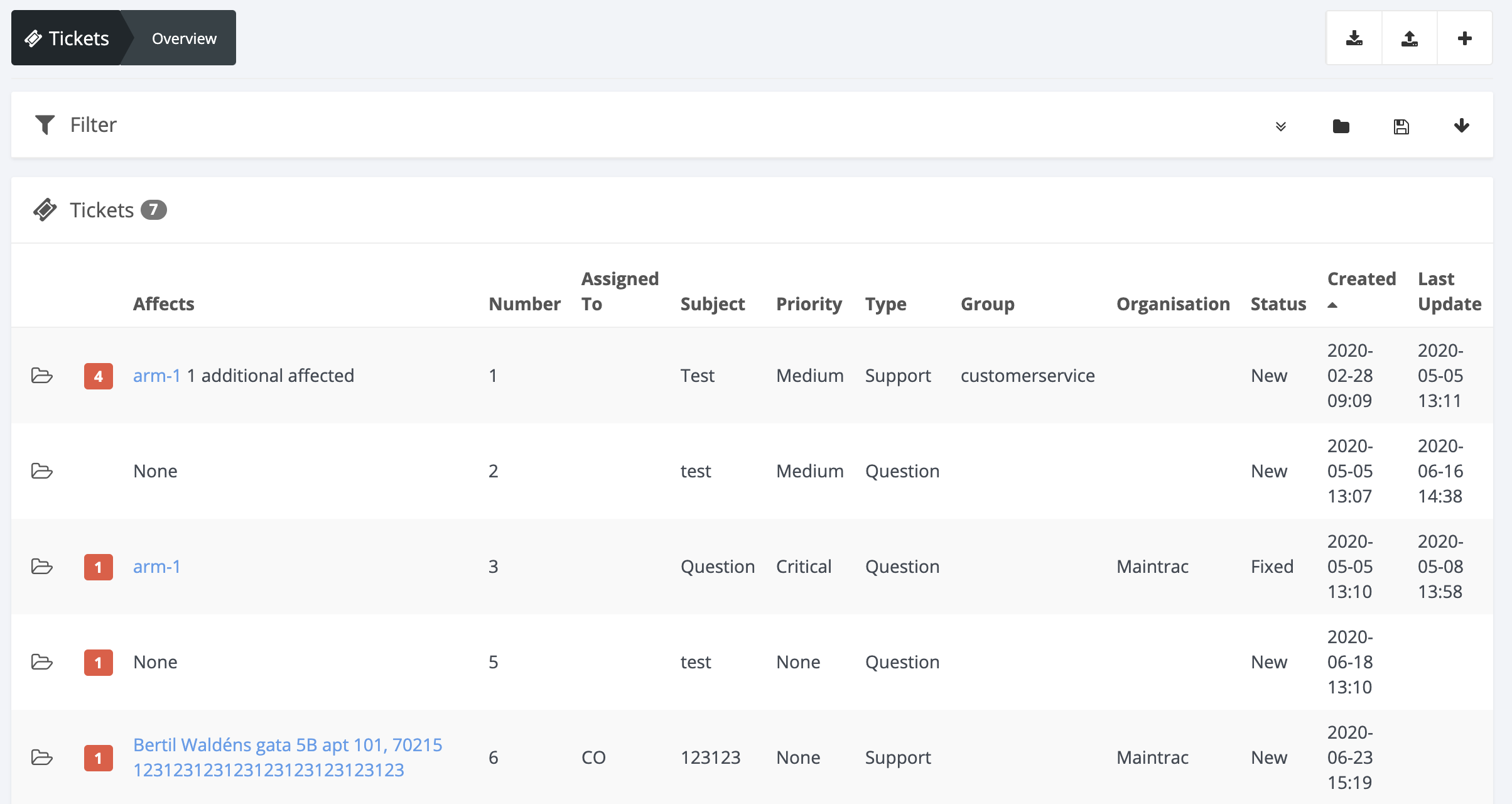
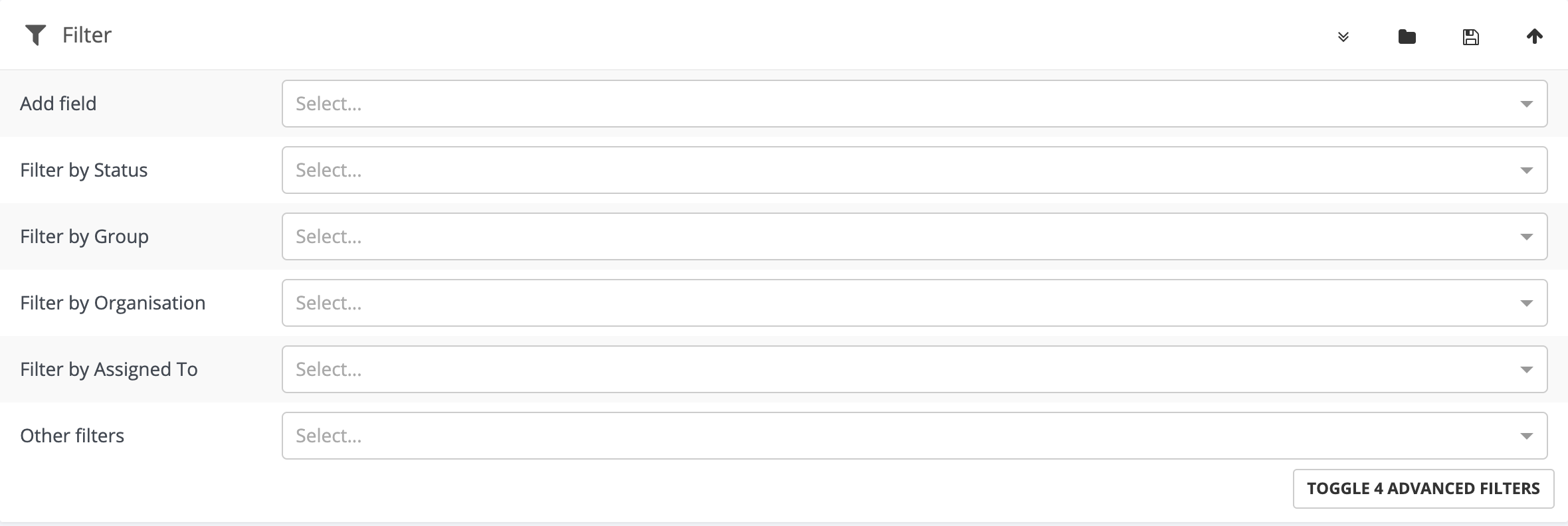
The ticket overview contains a summary of all the tickets in the system together with its associated object (affects), its subject and more. It allows for filtering on most datatypes in the overview box, excluding group, type and organisation. Furthermore it allows for filtering through any keyword in the search field within the Filter box at the top of the overview, as well as filtering through status, group and organisation in the drop down menus.
My Tickets
The My Tickets overview is identical to the ticket overview in every way except that it shows only tickets associated with the user viewing it. Association can be made in a number of ways, but primarily through subscribing to a ticket or being responsible for the work a ticket requires. For more details on My Tickets see the edit ticket user case.
Configuration
The configuration catalogue contains all overviews associated with configuring the flow installation. This includes overviews for Methods, Event conditions, Setting types, Attributes and Monitoring.
Methods
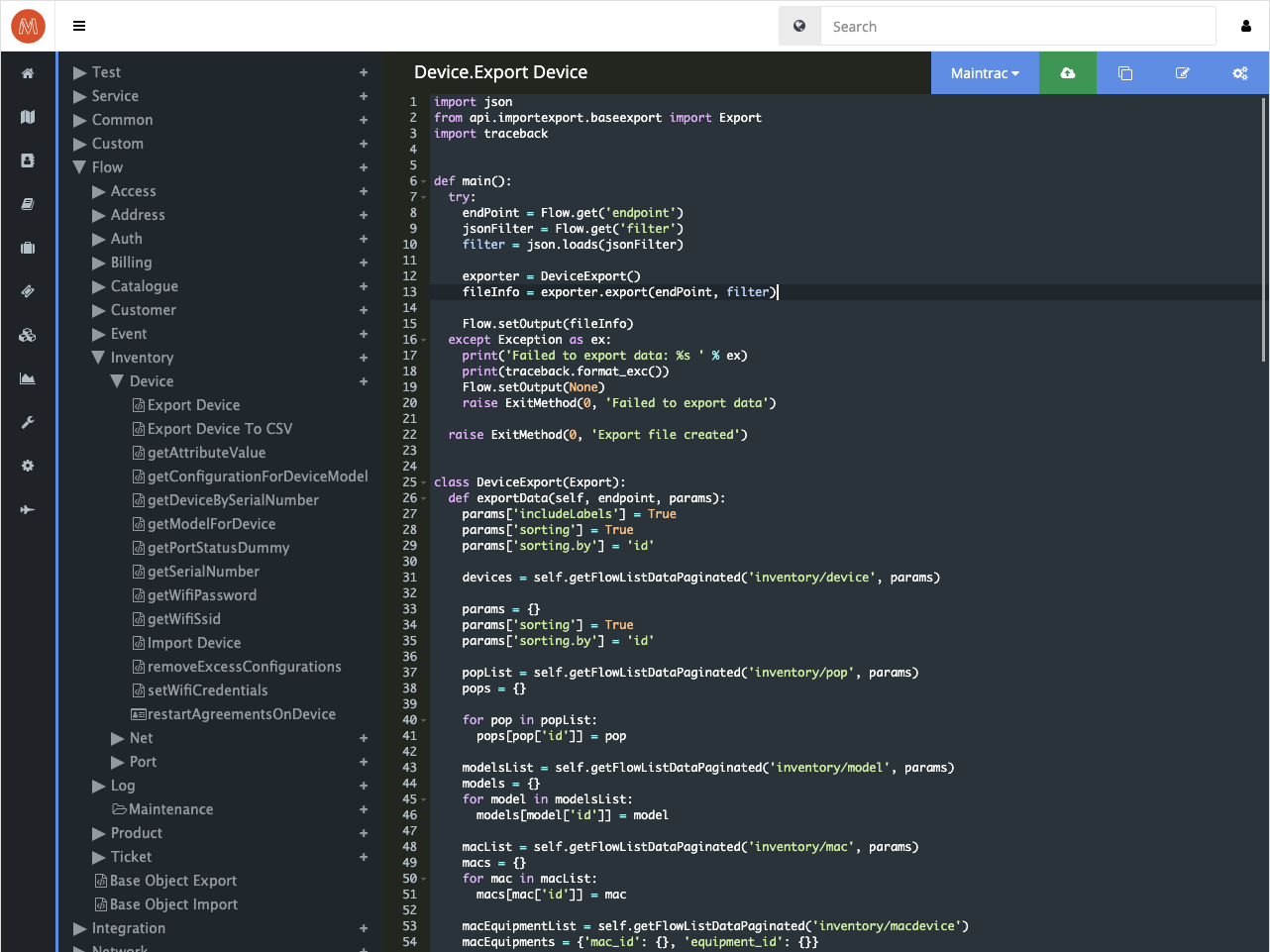
Clicking methods will take the user to the built-in method editor of Flow. This editor allows for a detailed overview of all the methods, custom views and flows in the system.
-
A title marked with
 represents
a folder that can be expanded to see it's content by clicking on it. You
cannot add any new folders in the editor if you wish to do this please contact
an administrator.
represents
a folder that can be expanded to see it's content by clicking on it. You
cannot add any new folders in the editor if you wish to do this please contact
an administrator. -
A title marked with
 represents a flow that can be opened, edited and manipulated. For a more in
depth view on Flows, please go to What is a flow section.
represents a flow that can be opened, edited and manipulated. For a more in
depth view on Flows, please go to What is a flow section. -
A title marked with
 represents
a custom method file, clicking it will take you to the Flow editor and allow
the editing of its python code. To read more about this feature, please go to
the Creating a method section,
represents
a custom method file, clicking it will take you to the Flow editor and allow
the editing of its python code. To read more about this feature, please go to
the Creating a method section, -
A title marked with
 represents a custom view, clicking it will take you to the Flow editor and
allow the editing of its source code (commonly javascript).
represents a custom view, clicking it will take you to the Flow editor and
allow the editing of its source code (commonly javascript). -
A title marked with
 represents a code library. For a close look at our own flow.py
library, please go to the Flow.py library section.
represents a code library. For a close look at our own flow.py
library, please go to the Flow.py library section.
Event conditions
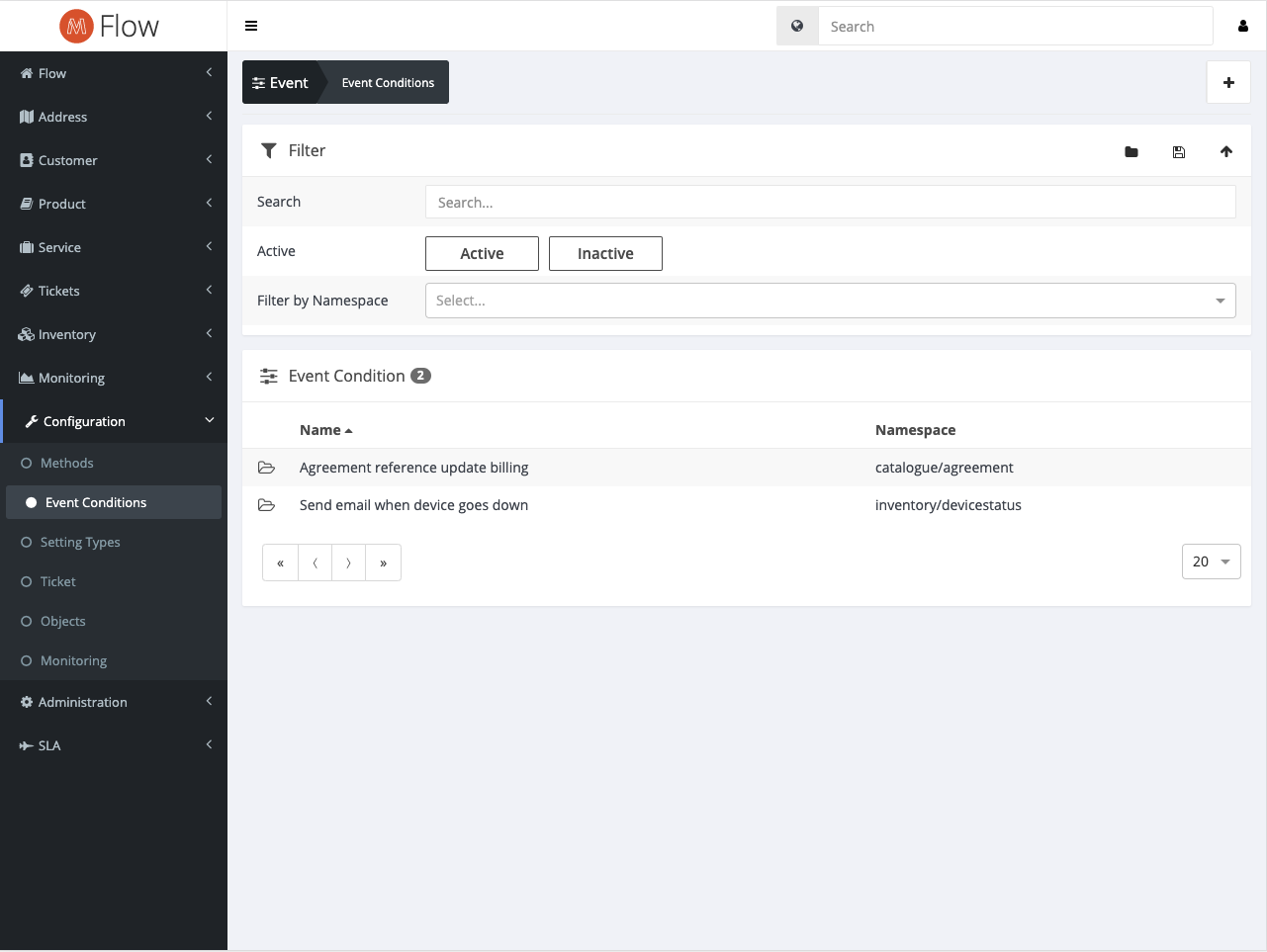
The event conditions overview is a summary of all event conditions in the system. Filtering is available by sorting on both fields and by the namespace and search filter in the filter box. An event condition can be described as a passive condition that is attached to a given namespace and triggers an action within that namespace as the user sees fit. For more details go to the create event condition chapter.
Use cases
In this segment we're going to go into detail on a few of the more common real life uses of flow, this is a more in depth tutorial and it is recommended that you read the “Getting started with Flow” segments before you get started with our use cases.
Ticket
New ticket
-
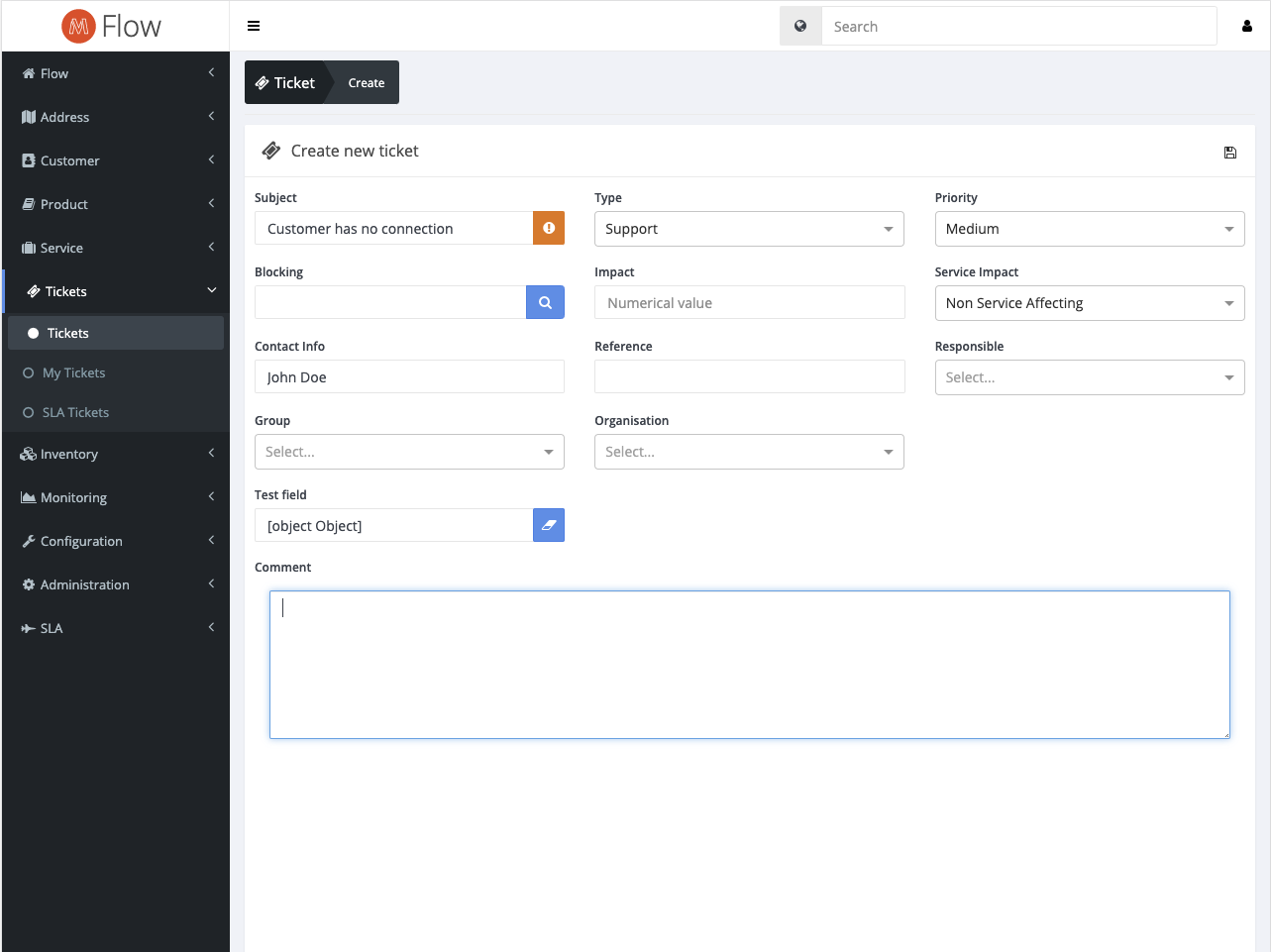
Go to the ticket overview and click on the plus sign in the top right corner. This will take you to the create new ticket view. In this view you will get to specify the case for the ticket, adding information such as Type, Priority, who is responsible and what the problem is.
-
Let's say you have a support errand that needs the help of a third party technician. The first thing you have to do is give the ticket a short but descriptive subject title. Then you're going to click the dropdown called “type” and set the type of errand, in this example we'll set this issue as a support errand. After this you will set the priority, we've chosen medium in this example, but you're free to set whatever you feel is right. In the contact input field a service provider can add important/relevant contact info (tel, name, email). This will be saved and displayed in a manner that is in line with GDPR law. Add a technician as responsible to this ticket, or add team leader until the responsibilities are assigned to a certain person by him/her. If you want a whole group of people to be notified if anything in this ticket changes you can set the group to technician. Lastly set the correct organisation and add a comment describing the problem.
-
Click the save icon to complete the creation process.
Edit ticket
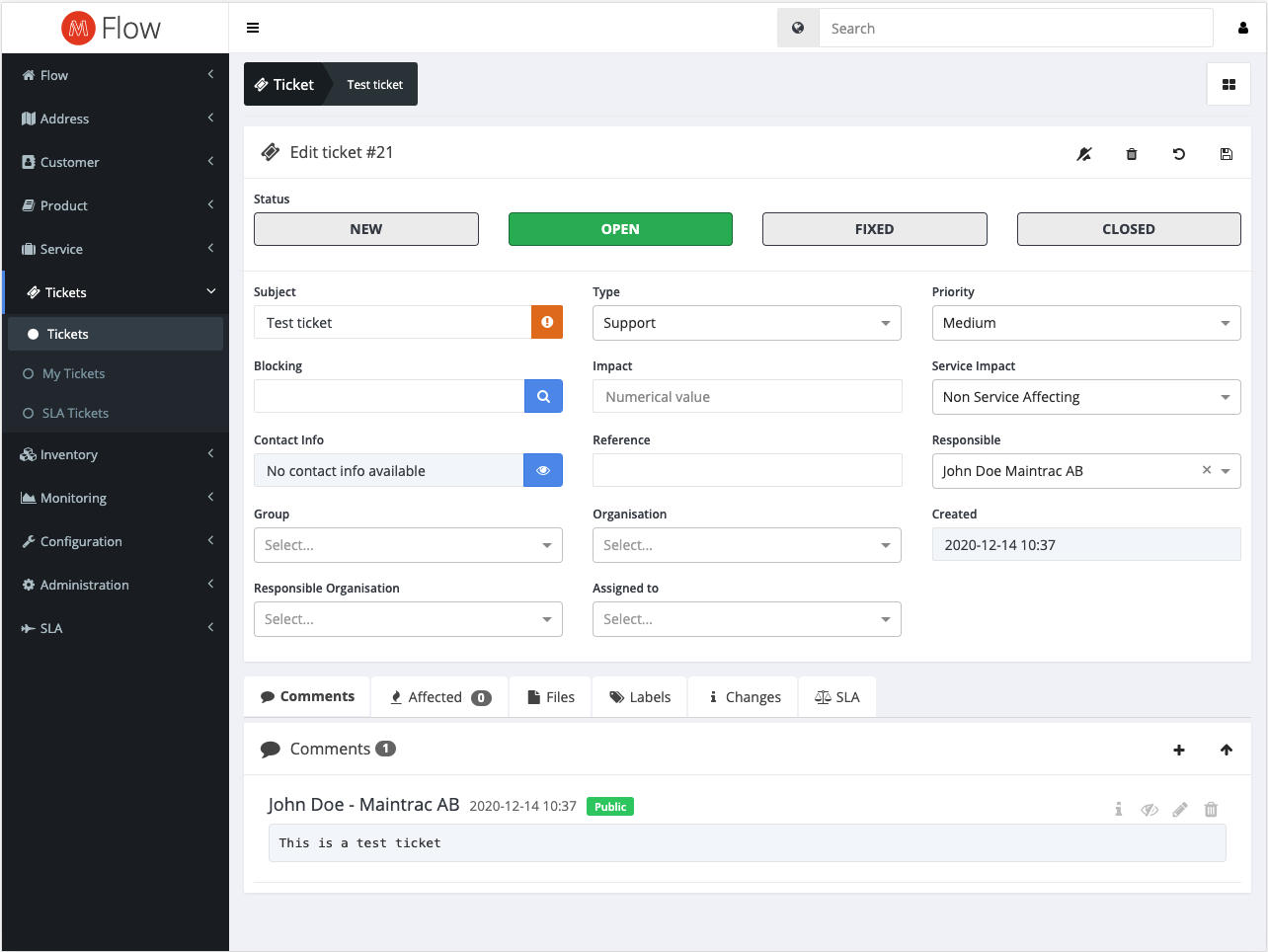 In this
example we're going to edit a ticket and then write a short summary of why
we've performed a certain change.
In this
example we're going to edit a ticket and then write a short summary of why
we've performed a certain change.
To start, click the edit icon in the top right corner of the view, this will change the page to edit mode which allows your to edit all the information of the ticket. It also changes the top right buttons and adds an undo button, this follows the same principles as described in the getting started chapter.
Now there are a few things we want to do in this example; a technician has been chosen by the team leader and we no longer want the entire group to get an email every time a comment or change is being made on the ticket. To fix this we will choose the technician as responsible, in this case it will be John Doe. We also want to remove the group completely and do this by pressing the ‘x' to the right in the group dropdown. Once done click on the save button in the top right to complete the first step. When you make a change you will often want to give an update on the status of the ticket. To change status click the box that says open in the top of the view. After changing the status, add a comment with some info on what you've done and why. These changes are always saved in the changes tab but can sometimes be hard to read or interpret if you don't have experience working in the system.
Products
Product availability can be set to specific organisations. This will restrict product access in ONAPI to given organisation.
Conditions
Conditions is used for data segmentation in ONAPI. This is done by assigning a label to the organisation using the plus button in the top right corner of the Conditions box. This will make ONAPI only return addresses using the given label(s).
Tips & Tricks
If you are authenticated as an administrator you can click the user icon in the top right corner, followed by the wrench to show "General Settings", here you can enable "Developer Mode" to show what namespace is required for specific components, just make sure "Hide Permission Wrapper" is not enabled.
title: Inventory
Inventory contains all the associated overviews and their respective edit and create views. Included in this is Devices, Models, Net/IP-Address, Point of presence, Software and VLAN.
Devices
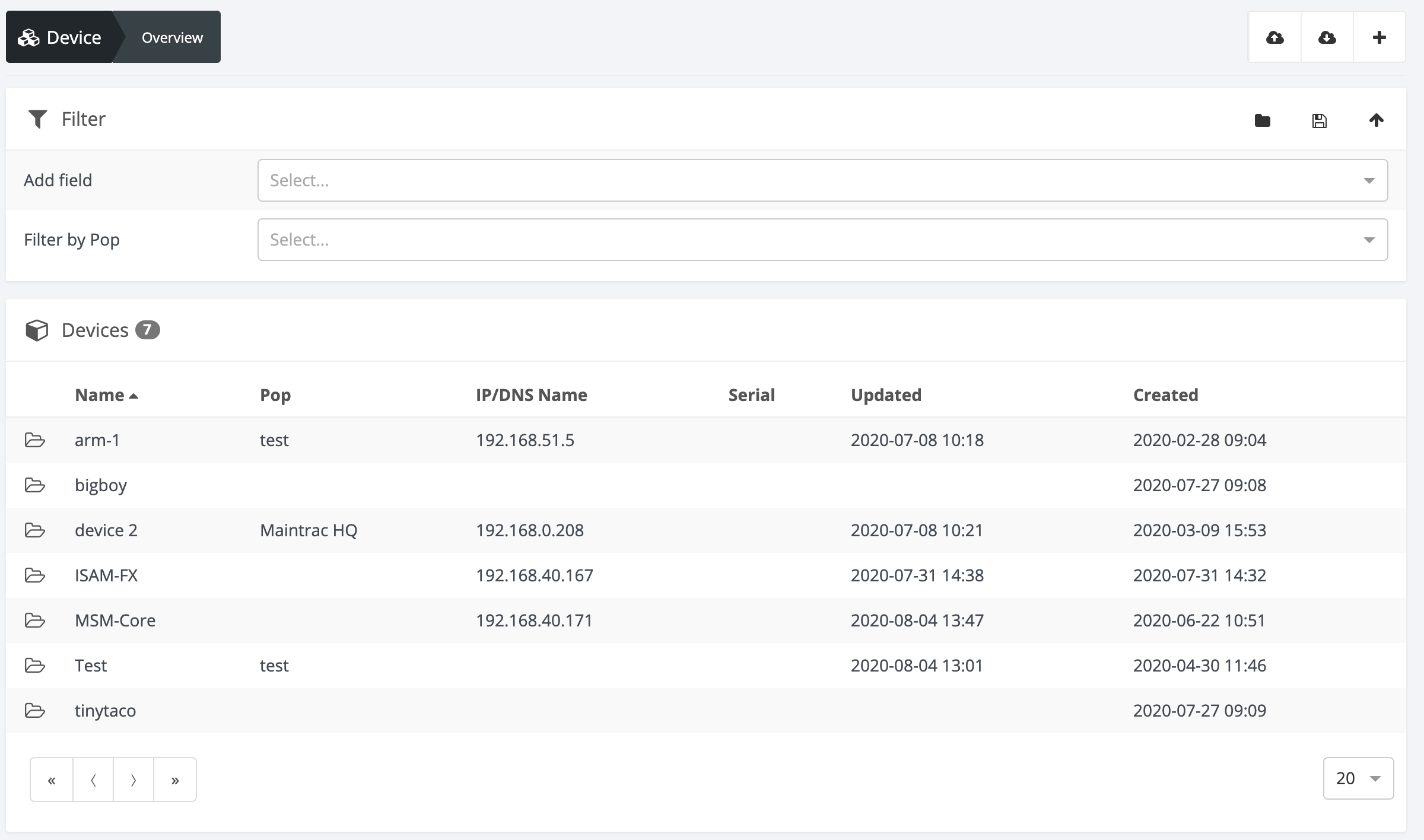
The devices overview is a summary of all the hardware that exists within the system. It allows for sorting on all associated fields by clicking on them. It is also possible to filter on keywords by using the filter widget placed above the overview.
Models
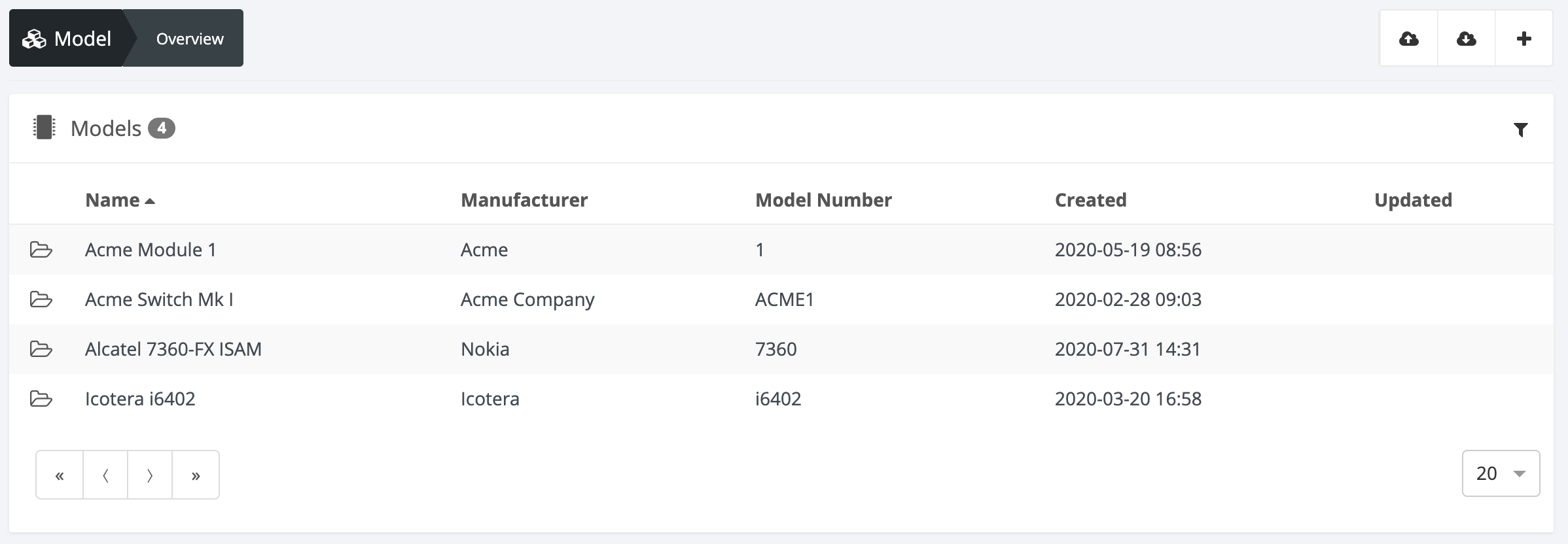
The models overview is a summary of all the hardware models that exists within the systems. This is different from the devices overview in that it lists the different variants of devices, not the individual unique devices themselves. This overview allows for sorting on all associated fields by clicking on them. It is also possible to filter the overview with keywords by clicking the funnel icon in the top right corner.
Net/IP-address
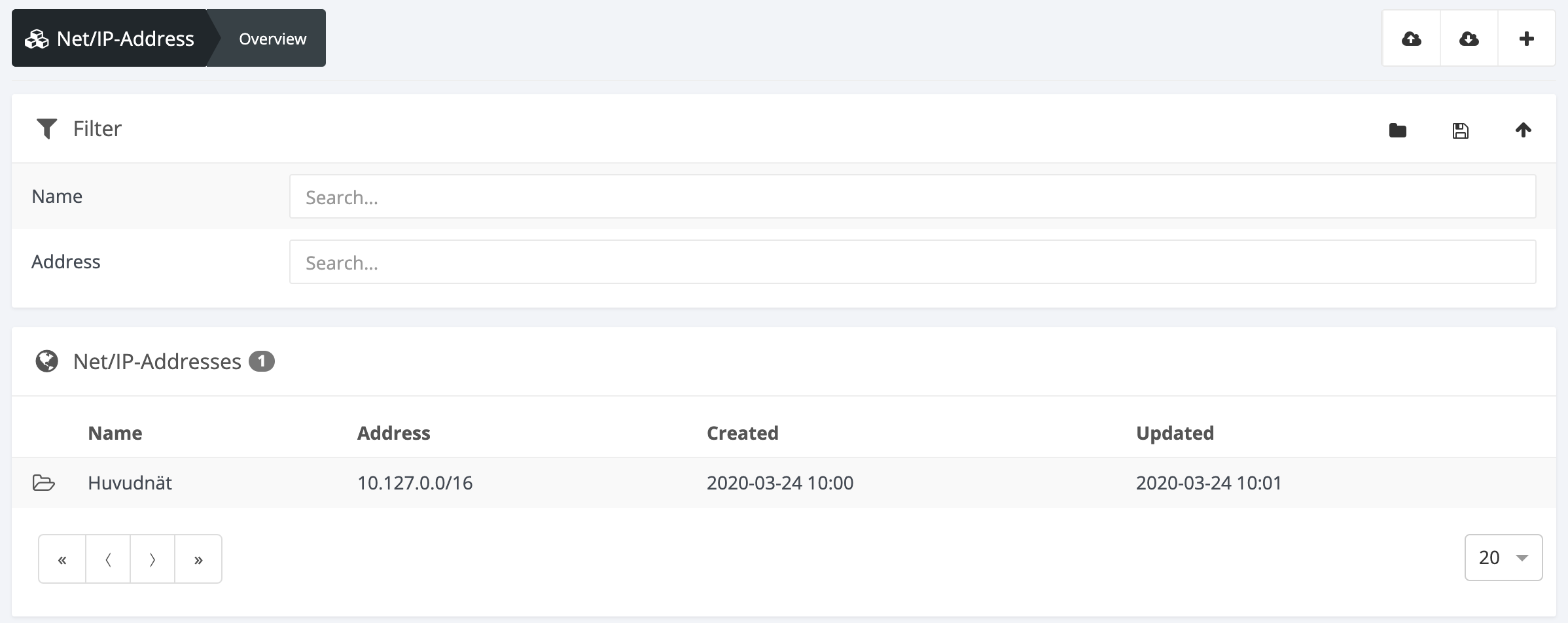
The Net/IP overview is a summary of all the Net or IP-addresses in the system. It is possible to filter the view by clicking any of the associated fields or by clicking the funnel icon and typing in a keyword.
Point of presence
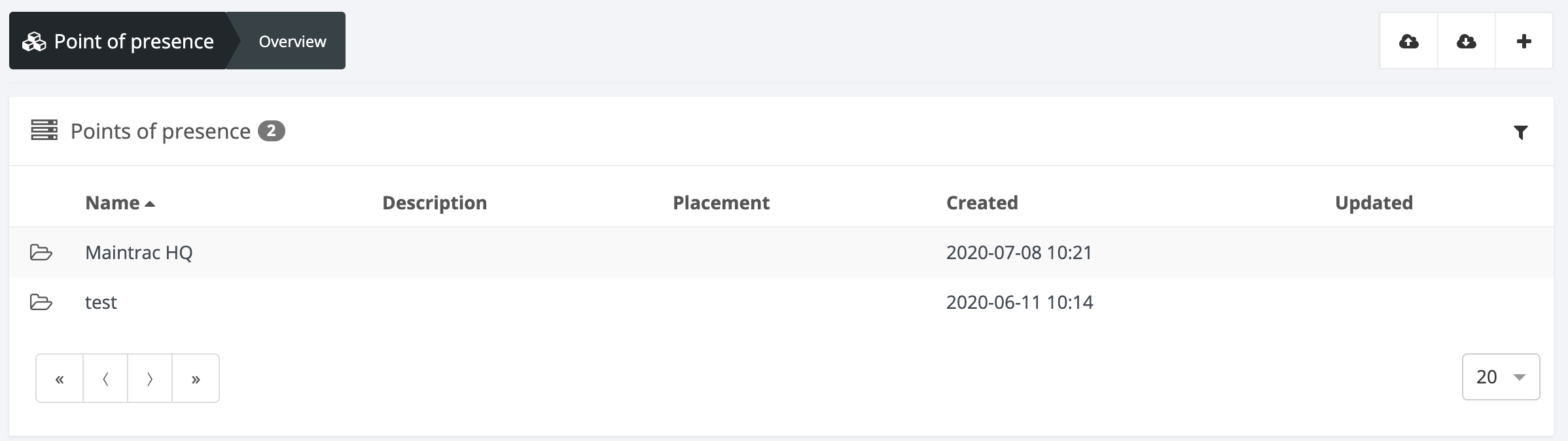
The point of presence or pop overview is a summary of all the addresses in the system with a device or number of devices associated with it. It is not of the same object type as address and only works as a reference to a location, usually with gps coordinates. The overview allows for sorting on all the associated fields.
Software
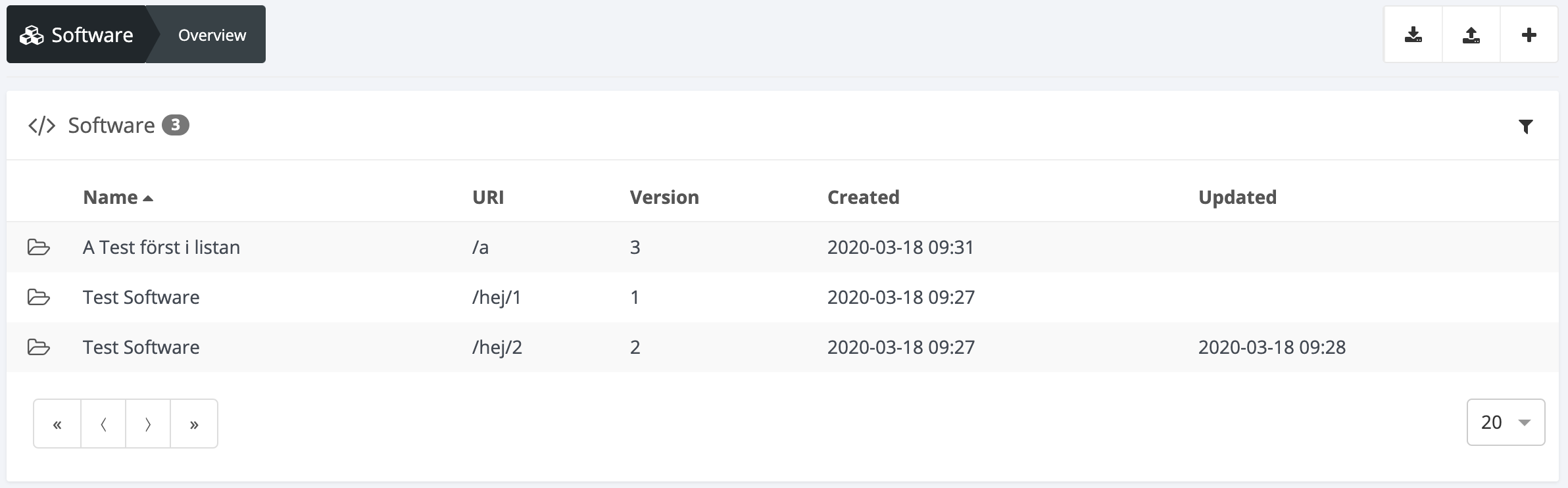
The software overview lists all the software that exists within the system. Note that Flow associated software is not listed here, only software owned or added by the owner of the installation. The overview allows for sorting on all the associated fields.
VLAN
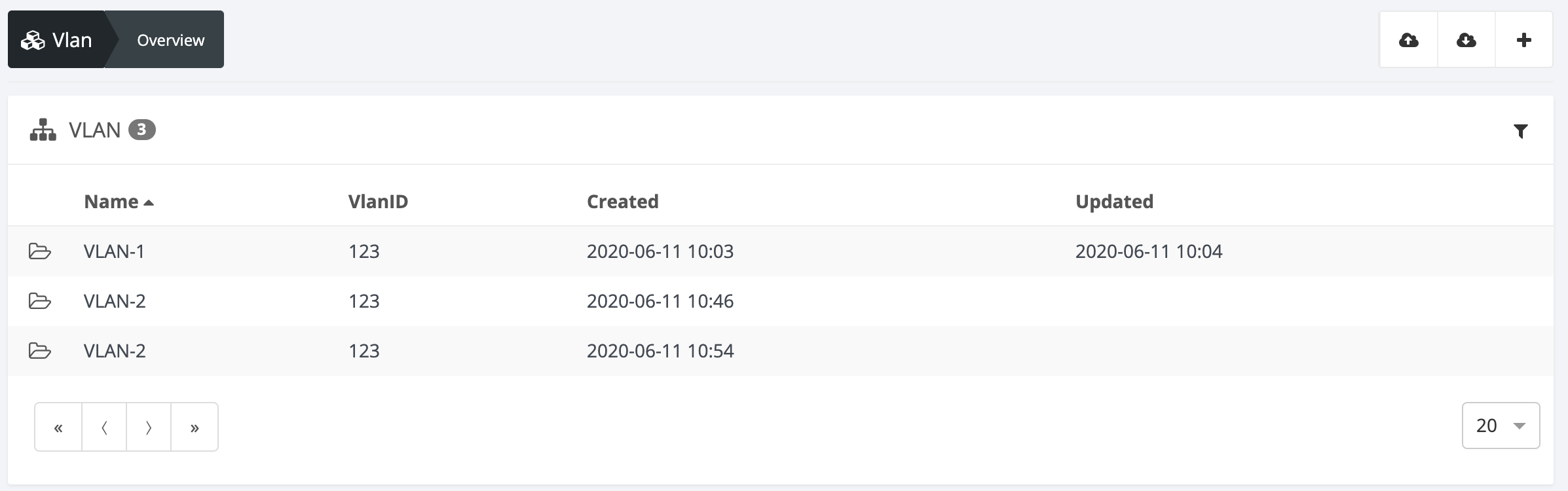
The VLAN overview lists all the VLANs in the system. It allows for sorting on all the associated fields and allows for keyword filtering by clicking the funnel icon.